Nine2Five
One Play. All Your Accounts.
When Nine2Five posts a reverse split play, our bot buys it in every brokerage account you have, in seconds.
Open this link on your Mac or Windows computer.
Link copied. Open it on your Mac or Windows computer.
Which Mac? Apple menu, About This Mac: Chip = Apple Silicon, Processor = Intel.
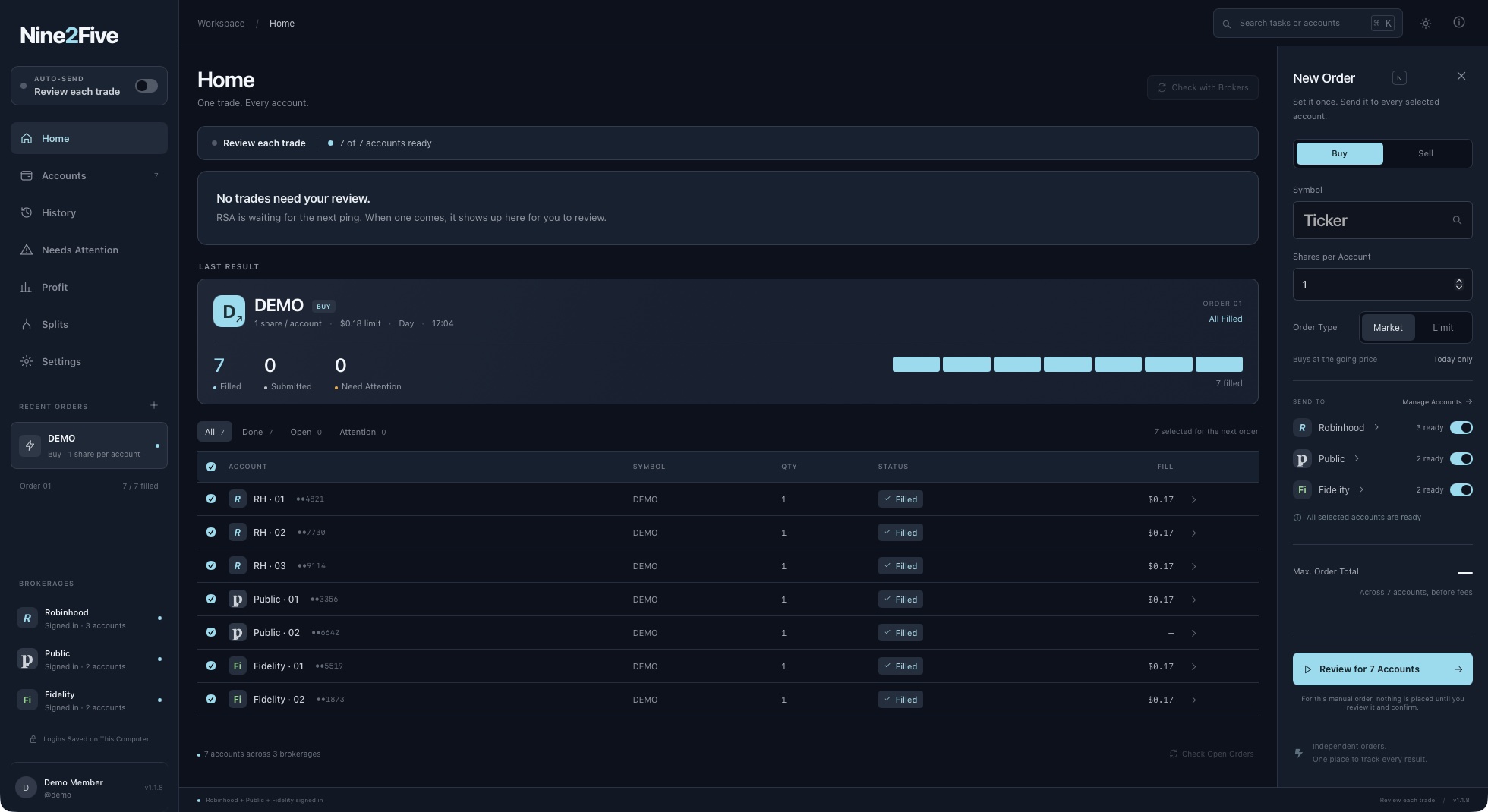
Demo shown. Open full size
What our bot does
-
Demo shown
Every account at once
One order,seven accounts, all filled
-
Demo shown
Auto-Send, your limits
Only whilethe bot is open and connected
-
Demo shown
Logins stay on your computer
Sent onlyto your brokerage
-
Demo shown
One order form
Set it once,send it to every selected account
Works with ten brokerages
- R
Robinhood
Sign in the way you always do
- P
Public
Sign in the way you always do
- F
Fennel
Sign in the way you always do
- Fi
Fidelity
Sign in the way you always do
- S
Schwab
Sign in the way you always do
Add them from Accounts
- So
SoFi
Sign in the way you always do
- W
Webull
Sign in the way you always do
- WT
WellsTrade
Sign in the way you always do
- T
TastyTrade
Through TastyTrade's API
- A
Aries
Through TradeStation's API
How it works.
Download and Open
Pick your computer above. The bot opens like any other app.
Paste Your License Key
In Whop, open Orders, then Nine2Five Premium, and copy the key. Paste it into the bot.
Add Your Brokers
Go to Accounts and press Add on each brokerage. Sign in the way you always do.
Installation help
Need a hand installing? Open the steps for your computer.
On a Mac
Three steps
On a Mac
Three steps
- Open the file you downloaded. Drag the bot's icon onto the Applications folder next to it.
- Open it. If your Mac says it can't check the app, open System Settings, then Privacy & Security, scroll down and press Open Anyway.
- If your Mac asks to let the bot find devices on local networks, either answer is fine.
On Windows
Three steps
On Windows
Three steps
- Open the setup file you downloaded. If a blue box pops up, press More info, then Run anyway.
- Press Next until it finishes. No admin password needed.
- The bot is now in your Start menu, and on your desktop if you ticked that box.